

Why a Free Business Email Matters for AI Teams and Startups
Starting an AI company or leading a small AI team in 2026 often means you have a great idea but not a huge budget. Every penny counts. Yet, looking professional is super important.

This is where a free business email comes in handy. It helps your team show up as serious players to investors, partners, and customers right from the start.
Think about it: an email like "[email protected]" looks much better than "[email protected]" when you’re talking about big AI ideas. This little change boosts your team’s image and trust without costing you anything. For early-stage AI founders and operators, free options let you save money and move fast. You get that official look without giving up important funds. Many providers in 2026 offer free business email options that let you use your own domain name, giving you a proper online presence even on a shoestring budget, as noted by experts comparing different options available today Free Business Email Providers Compared: 2026 Edition.
It’s true that finding a truly free business email can sometimes feel tricky. Some offers might seem free but have hidden costs or big limits. But don’t worry, real free options are out there. This guide will show you safe ways to get a business email without paying. We’ll also cover smart tips for keeping your emails safe, making sure they get delivered, and growing your email use as your AI business grows. We’ll even touch on how AI for business email in 2026 can boost how much your team gets done.
Ready to dive deeper into the world of AI and technology? Get clear daily AI updates from The AI Newsletter Worth Reading.
When a Business Email Really Matters (Investors, Partners, Hiring)
That professional email, like "[email protected]," does more than just look nice. It sends a strong signal to everyone you deal with. For an AI startup, trust is everything. When you talk to investors, they want to see that you’re serious. An email from your own company domain shows you’re not just a hobby project. It means you’ve put thought into your brand, and that can help build trust.

This is especially true when you’re trying to get funding and need to understand the world of venture capital.
The same goes for finding partners. Whether you’re working with other tech companies or customers, a proper business email says you’re reliable. It makes your team look organized and ready to handle important work. It’s a key part of how you show up in the business world of 2026.
And don’t forget about hiring! When you’re trying to attract the best people to your AI team, they’ll check out your company. If they see emails like "[email protected]," it tells them you’re a real business, not just a casual group. This helps build your company’s image as a good place to work. It’s part of how you show you’re serious about your future employees, just like learning how to land an AI startup job in 2026 means looking professional yourself.
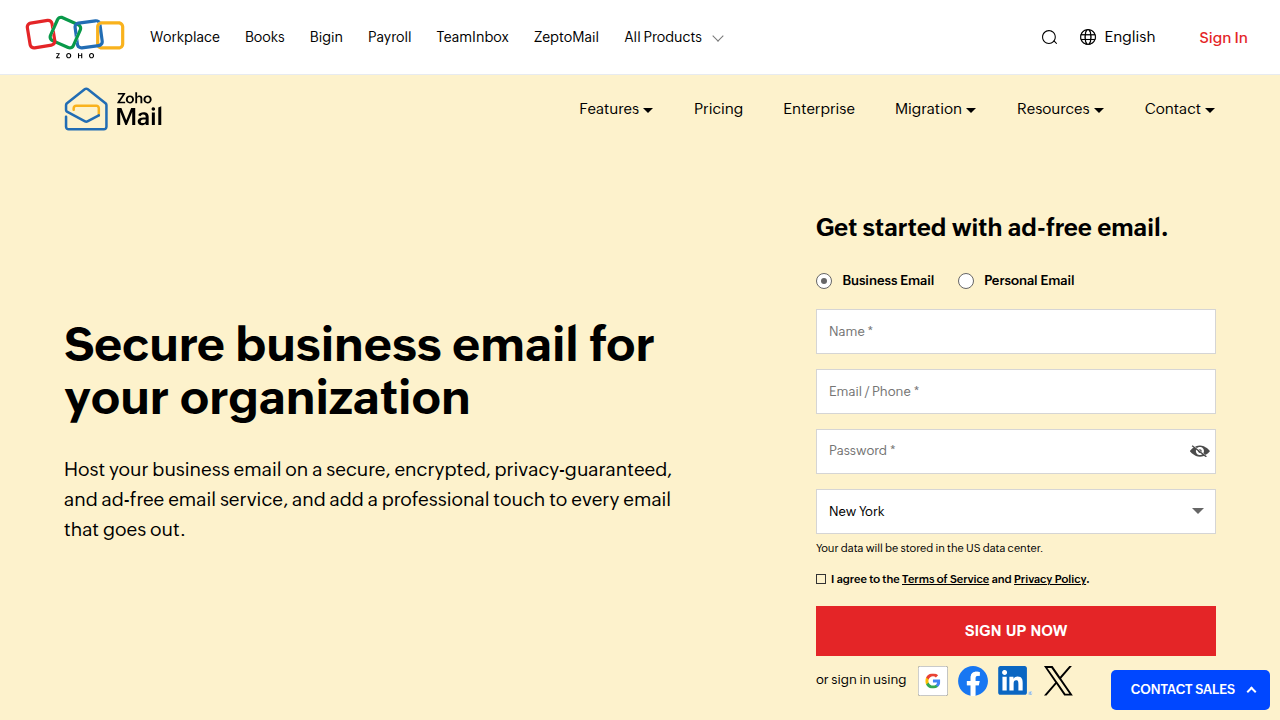
So, when is a free business email enough, and when do you need to pay? For small teams, especially when you’re just starting, free options can be a big help. Many providers let you set up a free business email for a few users. For example, Zoho Mail offers a free plan for up to five users, as long as you already have your own domain name, which is great for new teams figuring out how to create a business email for free.
This gives you that important professional look without touching your budget, which is a smart move when every dollar counts, according to a guide on 6 Best Free Business Email Accounts (2026).
However, you should know that some "free" offers can have catches, like limited storage or fewer features. Sometimes these limits can make the free plan hard to use for real business needs, as many offers are designed to push you to paid plans later on. This is a common issue with "free" offers, so it is important to be aware of how they truly stack up against paid options when trying to find a free business email in 2026. As your AI business grows, or if you need more features like bigger storage, more users, or special tools for managing email campaigns and creating an email newsletter template, you might need to switch to a paid plan. The good news is, many paid plans are still very affordable.
The key is to pick an option that fits your current needs but can also grow with you.
Choosing the right email solution, especially when money is tight, means looking closely at the truly free options. While some "free" offers come with hidden costs or big limits, there are still ways to how to create a business email for free that looks professional. It just depends on what you need and how much effort you’re willing to put in.
In 2026, here are the main ways you can get a business email without paying a dime:
1. Free Hosted Email Providers
These are companies that give you a special email box for your domain. You need to already own a domain name, like yourcompany.com.
- How it works: You sign up with a provider, tell them your domain, and they set up email addresses for you (like
[email protected]). You log into their website or use an email app to send and receive messages. - Examples:
- Zoho Mail: Offers a free plan for up to five users. Each user gets 5GB of storage. It’s a popular choice for new teams and small businesses trying to keep costs down, as noted in a guide on the Top 6 Best Business Email Providers in 2026.
- Mailbux: Another provider that offers free accounts, often with competitive storage and user limits, as you can see in a comparison of free business email providers for 2026.
- Pros:
- You get a truly professional email address with your own domain.
- You have a real inbox with basic features for sending, receiving, and organizing emails.
- It’s a good way to how to create a business email for free without much technical fuss.
- Cons:
- Limited number of users (often 1-5).
- Storage might be small, meaning you could run out of space quickly if you get many emails or attachments.
- Advanced features like calendar sharing or team collaboration tools might be missing or limited.
2. Email Forwarding from Your Domain Registrar
If you own a domain, the company you bought it from (your domain registrar) often lets you set up email forwarding for free.
- How it works: Emails sent to
[email protected]are simply sent along to your personal email address, like[email protected]. You still read and reply from your personal inbox. - Pros:
- It’s very simple to set up if you already have a domain.
- It’s usually completely free with your domain purchase.
- Your customers see your professional business email address when they send you messages.
- Cons:
- When you reply, the email will usually show your personal email address (
[email protected]) as the sender, not your professional one. This can look less polished. - You don’t get a real email inbox for your business email.
- Some emails might get caught by spam filters because the sending address doesn’t perfectly match the forwarding address.
- When you reply, the email will usually show your personal email address (
3. Gmail Alias Strategies (Using a Personal Gmail Account)
You can set up your personal Gmail to both send and receive emails from your custom business domain, even if it’s just forwarding.
- How it works: You set up your personal Gmail account to "send mail as" your business email address. This means when you reply to an email forwarded to your Gmail, it will look like it’s coming from
[email protected]. - Pros:
- You get to use the familiar and powerful Gmail interface.
- It helps maintain a professional appearance when sending replies.
- Cons:
- Setup can be a bit tricky and might require some technical steps with your domain settings.
- It still relies on email forwarding for incoming messages, so if that breaks, you won’t get your emails.
- There can be daily sending limits with free Gmail accounts, which could be an issue if you’re trying to send many emails or an email newsletter template. Free Gmail accounts can typically send up to 500 emails per day through the web interface, as outlined in a guide on email sending limits for 2026.
Key Trade-offs for Free Business Email Options
When you decide how to create a business email for free, it’s important to think about what you might be giving up:
- Deliverability: This means how often your emails actually land in the inbox and not in the spam folder. Free options might not have the best tools to help your emails get delivered reliably. Things like SPF, DKIM, and DMARC are important for this, and without them, your emails might have a harder time reaching their destination. The average email deliverability rate in 2026 is around 83-85%, but emails without proper authentication can see rates drop to 44%, according to Email Marketing Statistics 2026.
- Branding: How professional does your email look? Using your own domain (
@yourcompany.com) is always best. - Inbox Features: Do you need more than just sending and receiving? Things like shared calendars, task lists, or tools for managing an AI for business email in 2026 are often only available in paid plans.
- Support: If something goes wrong, free users usually get very basic or no customer support.
- Limits: Free plans often have strict limits on how many emails you can send, how much storage you get, or how many users can have an account.
Decision Matrix for Your Free Business Email
Choosing the right free path depends on what your AI startup needs right now:
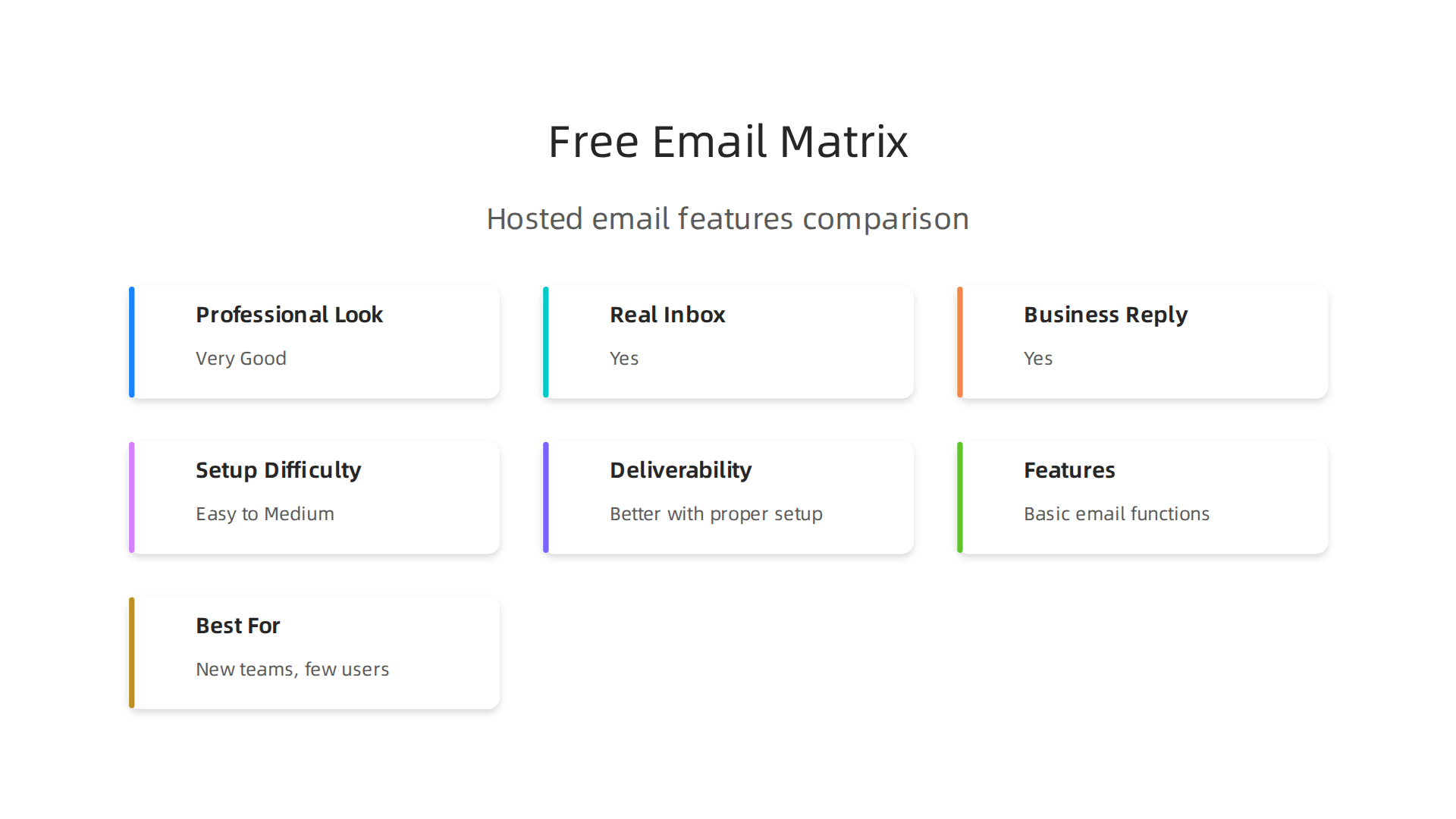
| Feature | Free Hosted Email (e.g., Zoho Mail Free) | Email Forwarding (via Registrar) | Gmail Alias (with Forwarding) |
|---|---|---|---|
| Professional Look | Very Good | Good (for incoming) | Good (for outgoing) |
| Real Inbox | Yes | No (uses personal inbox) | No (uses personal inbox) |
| Reply From Business Email | Yes | No (shows personal email) | Yes |
| Setup Difficulty | Easy to Medium | Easy | Medium to Hard |
| Deliverability | Better (with proper setup) | Can be tricky | Can be tricky |
| Features | Basic email functions | None (just forwarding) | All Gmail features |
| Best For | New teams, few users, clear business needs | Very basic use, just a placeholder | Tech-savvy users, personal use of Gmail |
For most AI startups, especially those aiming to grow, a free hosted email provider like Zoho Mail is often the best starting point. It gives you a real business inbox and a professional look without the immediate cost. However, be ready to switch to a paid plan as your team and needs expand.
If you’re wondering how to create a business email for free, getting a professional look doesn’t have to be hard. As we talked about, free hosted email services like Zoho Mail are a great start. They give you a real inbox and let you use your own domain name. Let’s walk through the steps to set up your free business email using Zoho Mail as an example. Remember, the basic steps are often similar for other free hosted email providers in 2026.
Your Step-by-Step Guide to a Free Business Email
Before you start, make sure you already own a domain name, like yourcompany.com. Zoho Mail’s free plan is designed for those who have their own domain already, offering a 5GB mailbox per email address for up to five users, as noted in a review of the 8 Best Business Email Providers in 2026.
Here’s how to get your free business email set up:
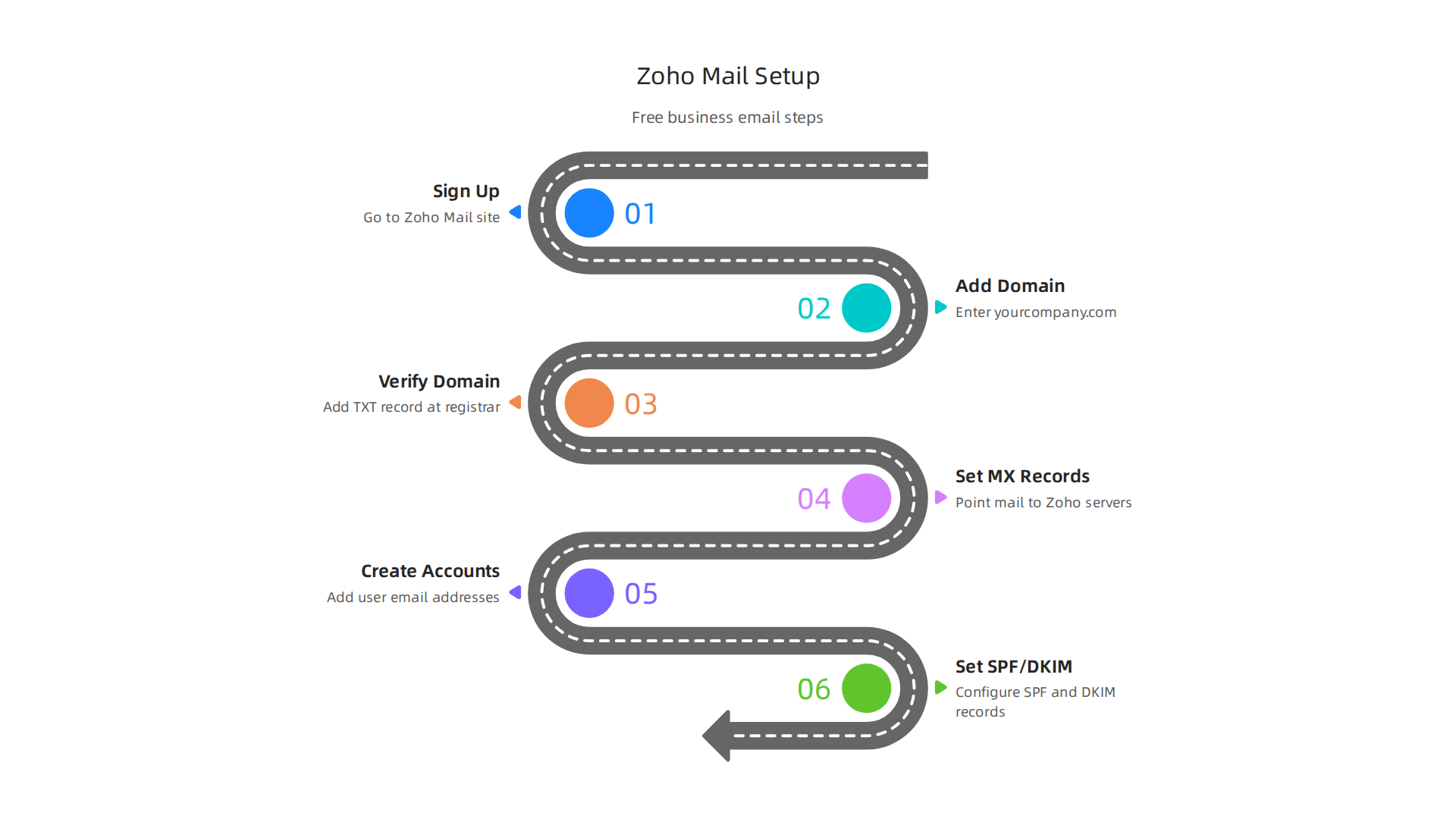
Step 1: Sign Up for Zoho Mail’s Free Plan
- Go to the Zoho Mail website.
- Look for the "Free Forever Plan" or "Sign Up for Free" button.
- You’ll need to enter your personal details to create an account. This is usually your name, a password, and a recovery email address.
Step 2: Add Your Business Domain
- Once you sign in, you’ll be asked to add your domain. This is where you type in
yourcompany.com(or whatever your actual domain is). - Zoho Mail will then ask you to verify that you own this domain. This is a very important security step to make sure no one else can use your domain for email.
Step 3: Verify Your Domain
This part can sound tricky, but it’s just about adding a small bit of code to your domain’s settings. You’ll usually do this where you bought your domain (like GoDaddy, Namecheap, or Google Domains).
- Choose your verification method: Zoho Mail will give you a few ways to prove you own the domain. The easiest is often the "TXT record" method.
- Log in to your domain registrar: Go to the website where you bought your domain. Find the section for "DNS settings" or "Domain Management."
- Add the TXT record: Zoho will give you a specific code (a TXT record). You’ll copy this code and paste it into your domain’s DNS settings. It might look something like:
Host: @oryourcompany.com, andValue: zoho-verification=zbXXXXXXXXXXXXX. - Click "Verify" in Zoho Mail: After you save the record at your domain registrar, go back to Zoho Mail and click the "Verify" button. It might take a few minutes for the internet to update, so be patient.
Step 4: Set Up MX Records (Email Routing)
Once your domain is verified, you need to tell the internet where your business emails should go. This is done with "MX records."
- Get Zoho’s MX records: Zoho Mail will show you a list of special codes (MX records) that point to their mail servers.
- Go back to your domain registrar’s DNS settings: Again, find the "DNS settings" or "Mail Settings" section.
- Delete old MX records: If you have any old email records (from a previous email service), delete them first. This is crucial!
- Add Zoho’s MX records: Add the MX records exactly as Zoho tells you. There will usually be two or three records, each with a "Host," "Value," and "Priority." For example:
Host: @,Value: mx.zoho.com,Priority: 10Host: @,Value: mx2.zoho.com,Priority: 20
- Save changes: Save your DNS settings. Again, it can take some time (up to a few hours) for these changes to fully update across the internet.
Step 5: Create Your Business Email Accounts
Now that your domain is ready, you can make your actual email addresses.
- In Zoho Mail, go to the "Users" section.
- Click to add a new user.
- Type the name you want for your email address, like
[email protected]or[email protected]. - Set a password for each new email account.
- You can set up to five free users with Zoho Mail. If you need more, you’ll have to upgrade to a paid plan.
Step 6: Set Up SPF and DKIM for Better Deliverability
These are like special stamps that tell other email servers your emails are real and not spam. They are very important for email deliverability in 2026.
- SPF Record: Zoho Mail will give you a TXT record for SPF. Go back to your domain’s DNS settings and add this TXT record. It helps prevent your emails from going to spam folders.
- DKIM Record: Similarly, Zoho will give you a DKIM record. Add this as another TXT record in your DNS settings. DKIM adds another layer of security to your emails.
Using these settings is key, as emails without proper checks can often end up in spam, sometimes having deliverability rates as low as 44%.
Quick Troubleshooting Tips
Even with a good guide on how to create a business email for free, things can sometimes go wrong.
- Emails not coming in? Double-check your MX records at your domain registrar. Are they exactly as Zoho provided? Are there any old MX records still there?
- Emails going to spam? Make sure your SPF and DKIM records are correctly set up. This is often the biggest reason for emails getting lost.
- Can’t log in? Check if you’re using the right password for the email account, not your main Zoho account password.
- Need to keep track of settings? Consider using a simple text document or a notes AI tool to store all your domain and email settings. This helps prevent future headaches.
- Thinking about a bigger email strategy? If you plan on sending out an email newsletter template, checking your deliverability settings becomes even more important. You might also want to look into tools that help you manage contacts better, perhaps even an AI personal assistant to help organize your inbox.
Setting up your free business email takes a little time, especially with the DNS settings, but once it’s done, you’ll have a professional online presence ready for your business.

For a deeper dive into the AI landscape that might influence your business, you can consult a 2026 comprehensive AI guide for investors, founders, and analysts.
After getting your domain set up and your first email accounts ready, there’s one more big step. It’s about making sure your emails don’t just get sent, but actually land in the right inbox. This is where security protocols like SPF, DKIM, and DMARC become super important. Think of them as special badges and rules that prove your emails are really from you and not a spammer. Even when you learn how to create a business email for free, these steps are crucial in 2026.
Why Authentication Protocols Matter
In today’s digital world, email providers like Gmail and Yahoo are very strict. They want to protect their users from spam and fake emails. If your business emails don’t have these security "badges," they might go straight to the spam folder, or even disappear entirely. This is true for any email, no matter if you use a free service or a paid one. Studies show that emails without proper checks can have very low deliverability rates, sometimes less than 50%, meaning more than half of your emails might not reach their targets. Proper setup can boost your inbox placement significantly, often above 89% and even up to 95% or higher, as noted in various email deliverability reports for 2026.
Let’s look at what each part does:
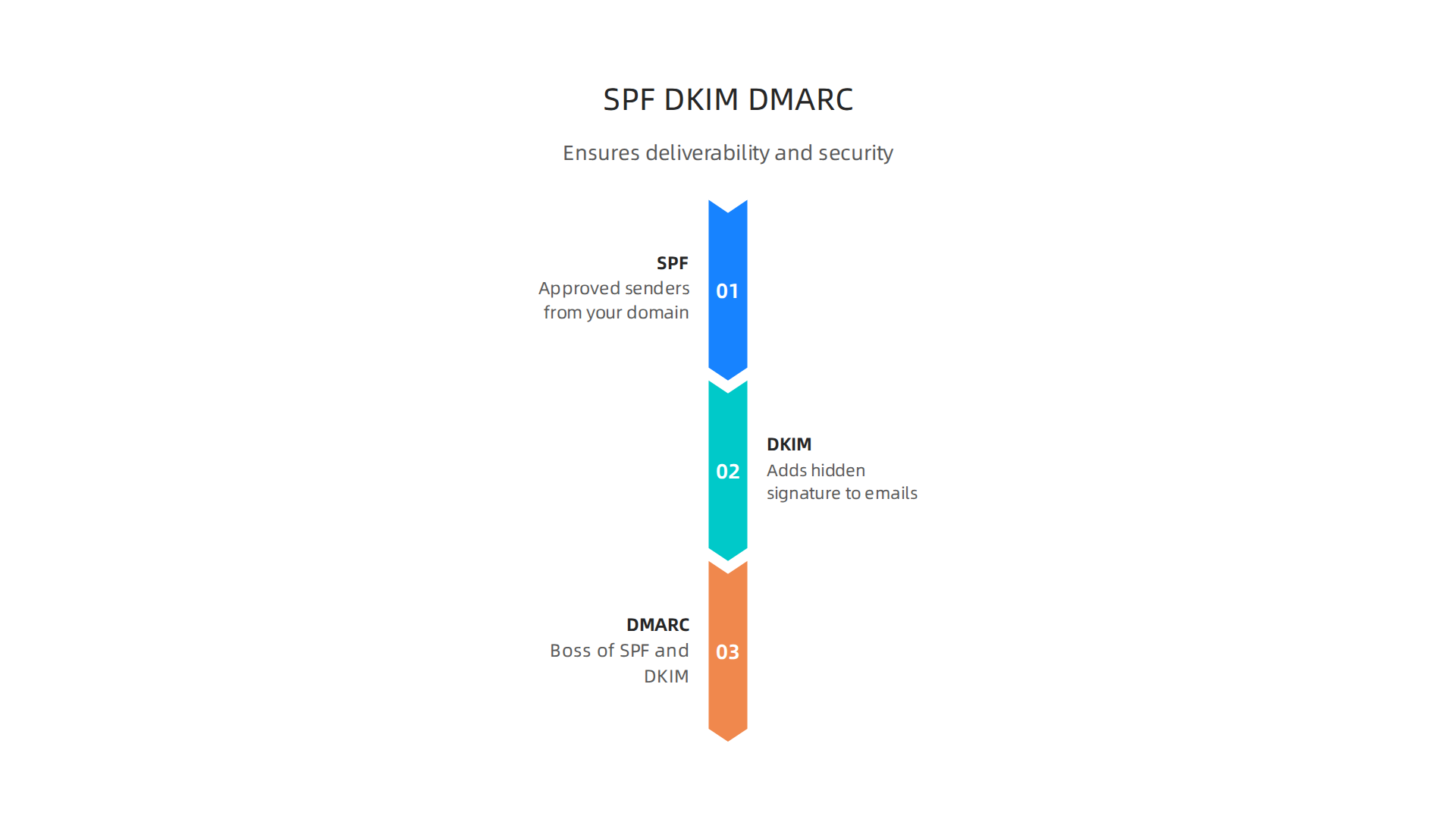
- SPF (Sender Policy Framework): This record tells other mail servers which specific computers are allowed to send emails from your domain. It’s like a list of approved messengers. If an email comes from your domain but not from an approved messenger, it’s flagged as suspicious. A good SPF record should be clear and only list your active sending platforms to prevent emails from going to spam, as detailed in an Email Deliverability in 2026: SPF, DKIM, DMARC Checklist.
- DKIM (DomainKeys Identified Mail): This adds a special hidden signature to your emails. It’s like a tamper-proof seal. When an email server gets a message from you, it checks this signature. If the signature is valid, it knows the email hasn’t been changed along the way and is truly from your domain. Using strong keys for DKIM and rotating them helps keep your emails secure and trusted, according to the Best Practices for SPF, DKIM, and DMARC Records.
- DMARC (Domain-based Message Authentication, Reporting & Conformance): This is like the boss of SPF and DKIM. It tells other email servers what to do if an email fails the SPF or DKIM checks. Should they send it to spam, reject it completely, or just monitor it? DMARC also sends you reports, so you can see if anyone is trying to send fake emails from your domain. For effective DMARC setup, starting with a monitoring policy (
p=none) is a smart first step, as it allows you to see reports without blocking legitimate emails, a key recommendation from a DMARC Best Practices Guide for 2026.
Together, these three work like a security team, making sure your business emails are trustworthy and reach their intended recipients.
Adding DMARC to Your DNS Records
You already set up SPF and DKIM when learning how to create a business email for free. Now, let’s add DMARC. This is done in the same place as your other DNS settings, usually at your domain registrar.
- Create a DMARC Record: You’ll add a new TXT record. The "Host" or "Name" for this record will usually be
_dmarc. - Add the Value: The "Value" for the DMARC record will look something like this:
v=DMARC1; p=none; rua=mailto:[email protected].v=DMARC1: This simply says it’s a DMARC record.p=none: This means "policy is none," which tells other email servers to just monitor emails that fail SPF or DKIM. They won’t block them yet. This is important to start with so you can check everything is working right without accidentally blocking your own emails.rua=mailto:[email protected]: This is where DMARC sends reports about your email traffic. You’ll get daily reports about who is sending emails from your domain and if they passed or failed the checks. Make sure to use an actual email address you can check.
- Save Your Changes: Save the new TXT record in your domain’s DNS settings. It might take some time for the internet to update these changes.
Monitoring and Maintaining Good Deliverability
Setting up SPF, DKIM, and DMARC is a big step, but it’s not a one-time thing. You need to keep an eye on how your emails are doing.
- Check DMARC Reports: The
ruaemail address you set up will get reports. These reports can look a bit confusing at first because they are in XML format. But there are free tools online that can help you read them. These tools turn the raw data into easy-to-understand charts, as suggested by 5 Essential Tips for Mastering SPF, DKIM, and DMARC in 2026. This helps you see if your emails are passing their checks. - Adjust Your DMARC Policy: Once you’re sure all your legitimate emails are passing SPF and DKIM, you can slowly make your DMARC policy stricter. You can change
p=nonetop=quarantine(send failed emails to spam) or evenp=reject(don’t deliver failed emails at all). This helps protect your domain from spammers using your name. - Keep Your Records Clean: If you ever change email providers or add new services that send emails for your business, remember to update your SPF record. Old, unused records can cause problems. Also, make sure your SPF record stays concise, ideally under 10 DNS lookups, to prevent issues, a key point in Email Deliverability 2026: Best Practices, Updates & Guide.
- Consider AI for Email Management: For businesses sending many emails, especially an email newsletter template, staying on top of deliverability and overall email health is vital. Tools that use AI can help monitor your email performance and even suggest ways to improve. You might find that looking into AI for business email in 2026 can significantly boost your productivity and ensure your messages always hit the mark.
By putting in this effort, you ensure that your free business email not only looks professional but also acts professional, reliably delivering your messages to your clients and partners. This diligence is key for maintaining a strong online presence in 2026.
You’ve worked hard to make sure your business emails actually land in the right inbox. Now, let’s make those emails even smarter and faster with the help of AI. In 2026, artificial intelligence is changing how we communicate, especially when it comes to business email. Even if you learned how to create a business email for free, you can add AI tools to boost your daily tasks.
Boosting Communication Efficiency with AI Tools (Templates, Summaries, Automations)
AI tools can act like your own personal assistant for email. They can help you send messages quicker, handle customer questions better, and keep your team updated with less effort. Think about tasks like reaching out to potential investors, replying to customer service emails, or sending out quick company news. AI can make these much easier.
One big way AI helps is with email templates. Instead of typing out similar messages again and again, AI can help you create and use smart templates. For example, if you send a regular email newsletter template, AI can help you draft content or even make it newsletter editable with personalized touches. Tools like alfred_ can even write whole replies based on the email you received, sometimes removing the need for templates altogether, as noted in the Best AI for Email Templates in 2026.
This means you can do things like investor outreach and customer support much faster.
Smart Ways AI Can Help with Your Emails
AI brings many practical automations right to your business email:
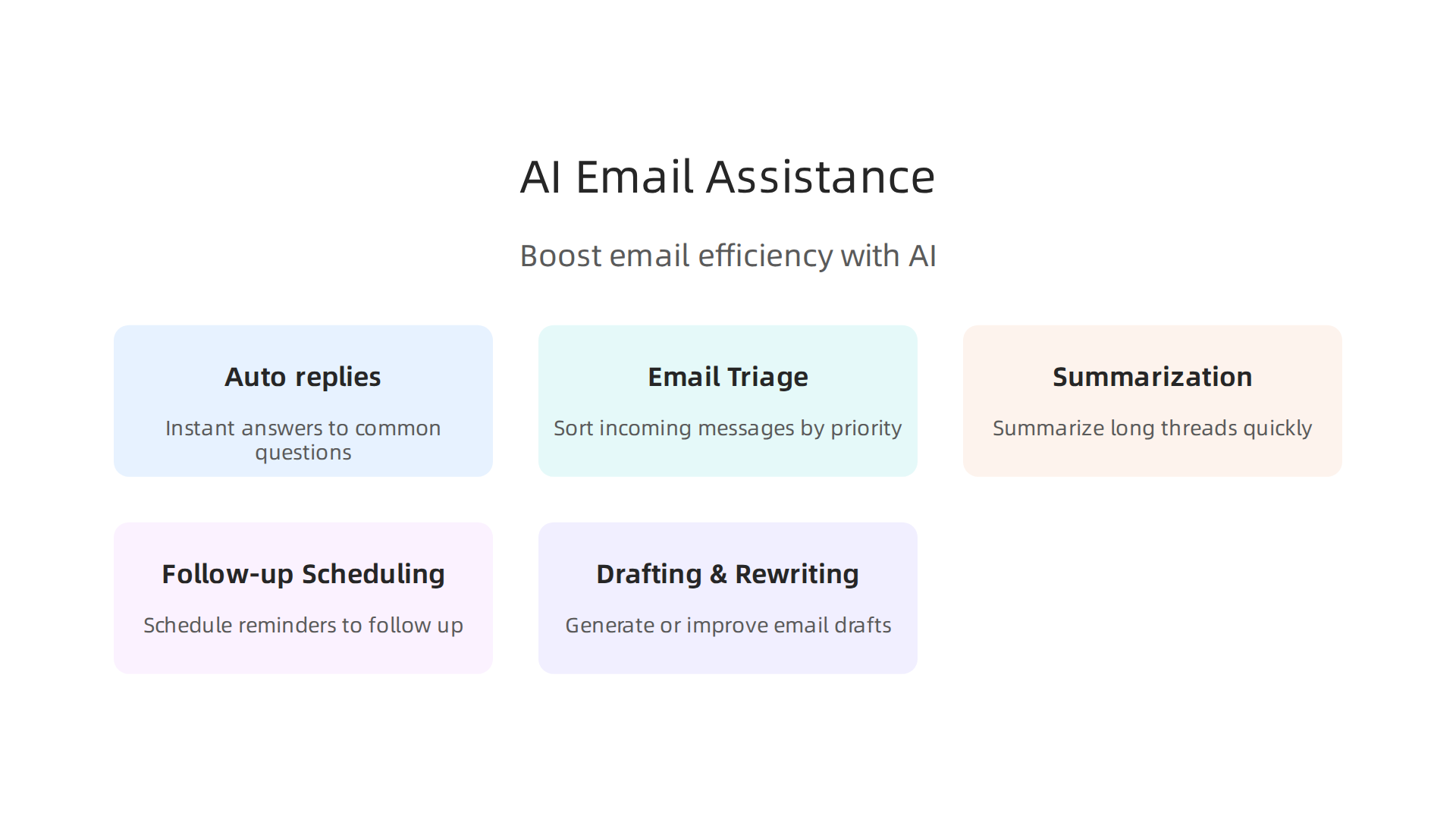
- Auto-replies: Set up smart auto-replies that understand basic questions and provide instant answers. This is a huge help for customer support.
- Email Triage: AI can sort your incoming emails, putting the most important ones at the top and moving less urgent ones to a separate folder. This helps you focus on what truly matters. Many top AI email tools in 2026 are designed for high-speed inbox triage, as highlighted in reports like The 7 Best AI Email Tools in 2026.
- Summarization: Have a really long email thread meaning? AI can read it and give you the main points in just a few sentences. This saves you a lot of time and helps you quickly grasp complex conversations. Tools like Microsoft Copilot and Google Gemini offer native summarization features for Outlook and Gmail users, respectively, according to the Best AI Email Tools in 2026.
- Follow-up Scheduling: AI can remind you to follow up on emails you’ve sent or received, making sure important tasks don’t fall through the cracks. It can even suggest the best time to send a follow-up.
- Drafting and Rewriting: Need to write a clear, polite, or persuasive email? AI can help you draft it from scratch, polish your existing writing, or change the tone. Some of the best AI email writers in 2026, like Sai by Simular, can write, format, and send emails right from your inbox without you copying and pasting, which is a great time-saver. You can find more about these in the 10 Best AI Email Writers in 2026 report.
Combining Free Email with AI Tools
Even when you use a free service to create a business email, you can integrate many AI tools. Some email providers, like Google and Microsoft, have their own AI built in, such as Gemini for Gmail or Copilot for Outlook. These are often the easiest to use. However, there are also many third-party AI assistants and tools available that work across different email platforms. When thinking about how to improve your business email in 2026, diving into AI for business email in 2026 offers a lot of ways to make your communication faster and smarter.
Things to Think About: Privacy and Data
When you combine your free email setup with third-party AI tools, it’s important to think about privacy. These tools often need access to your emails to help you. This means you are trusting them with your business information. Always read the privacy policy of any AI tool you use. Understand how they handle your data and if they keep it safe. The trade-off is often more efficiency for giving access to your information. You need to decide if the benefits outweigh the risks for your business.
By using AI wisely, you can make your email communication much more effective. Staying informed about the latest AI trends and tools is important to keep your business ahead.
Staying up-to-date on the fastest-moving AI trends and news can be a challenge. Get clear daily AI updates from The AI Newsletter Worth Reading.
You’ve learned that AI can make your free business email work smarter. But as your business grows, you might find that a free email setup doesn’t quite cut it anymore. It’s like having a great bicycle when you really need a car. While learning how to create a business email for free is a good first step, there comes a point where a paid, managed email service becomes a must. This usually happens when your business starts getting bigger, needs to follow more rules, or prepares for big changes like selling or getting new investors.
When to Move Off Free Email: Scaling, Compliance, and M&A Readiness
As your company gets larger, free email services can start to cause problems. They might not be reliable enough for sending many emails, keeping your messages safe, or following important business laws.
Your Business Is Growing
When you send more emails to more customers, or have many people on your team, a free email service can struggle. You might face issues like:
- Emails not reaching inboxes: If your emails often go to spam folders or disappear, it hurts your business. This is called "deliverability." In 2026, getting your emails delivered reliably means setting up special records like SPF, DKIM, and DMARC. These are like digital stamps that prove your email is real and safe. Free services usually don’t give you full control over these important settings. Poor deliverability can mean that roughly 1 in 6 emails may not reach the inbox, even if they are technically "delivered" to a server, according to some data on Email Deliverability Statistics 2026.
- Lack of control: As your team grows, you need to manage who has access to email accounts and what they can do. Paid services offer better tools for this, letting you add or remove users easily and keep everything organized.
Following the Rules (Compliance)
Businesses need to follow many laws about how they handle information and talk to customers. These rules are called "compliance."
- Data privacy laws: Laws like GDPR in Europe and CAN-SPAM in the US protect people’s personal information. Using a free email service can make it harder to prove you’re following these rules. For instance, you need to show you got permission to email people and keep their data safe. In 2026, Email Marketing Compliance is shaped by frameworks like CAN-SPAM, GDPR, CASL, and CCPA/CPRA. A paid email provider often has built-in features to help you meet these requirements. Understanding the deeper meaning of these rules, sometimes with the help of insights into Explainable AI Demystifies Black Box Systems for Business Trust and Regulatory Compliance, can help your business be ready.
Getting Ready for Big Deals (M&A and Investors)
If you plan to sell your business or get money from investors, they will look closely at how your business works.
- Professional image: A business using free email can look less serious or less secure to potential buyers or investors. They want to see that your business has proper, professional tools.
- Due diligence: When investors check your company, they look at everything. A strong, managed email system shows that your business is stable and well-run. This helps you look good and makes the deal go smoother. To better understand how investors view businesses, you might want to Understand an Investment Firm Profile Your 2026 Expert Guide.
Moving from a free email service to a paid one is a big step that shows your business is serious about growth, security, and professionalism. It’s an investment in your company’s future.

Summary
This article explains why a free business email matters for AI teams and early-stage startups and shows practical ways to get a professional address without spending money. It compares common free options—hosted free plans (like Zoho Mail), domain registrar forwarding, and Gmail alias tricks—outlining setup steps, pros and cons, and real trade-offs such as storage limits, user caps, and deliverability. You’ll get a step-by-step Zoho Mail setup guide, clear instructions to add MX/SPF/DKIM/DMARC records, plus monitoring and troubleshooting tips to keep messages out of spam. The piece also covers how AI tools can automate templates, triage, and summaries, and it flags privacy considerations when granting AI access to mail. Finally, it explains when free email stops being enough—covering scaling, compliance, investor due diligence, and when to move to paid, managed services as your team grows.